You can manually generate an internal VoS Request for a learner. You may want to do this when details relevant to a StudyLink loan or allowance have changed, and a new VoS Response needs to be sent to StudyLink.
To create a VoS Request for a specific learner:
-
Select the VoS Details tab.

-
Select the Manual VOS Request button on the StudyLink Commands ribbon.

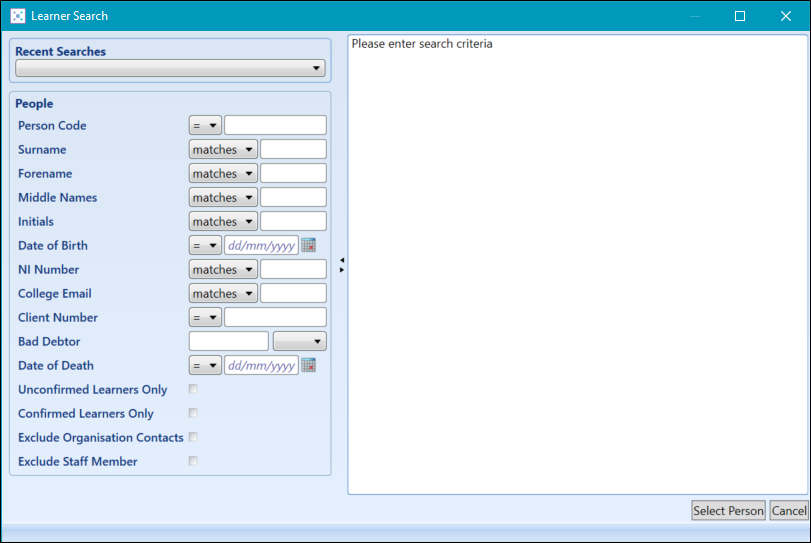
The Learner Search window is displayed.
-
Search for and select the relevant learner, and then select the Select Person button.
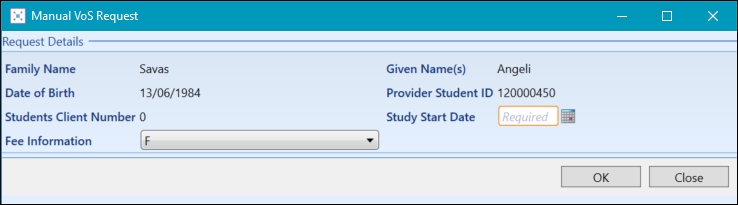
The Manual VoS Request window is displayed.
-
Edit the Start Study Date and Fee Information fields as required, and then select OK .
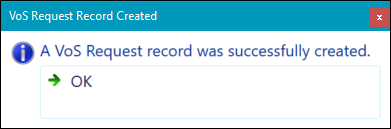
A confirmation message is displayed on completion.
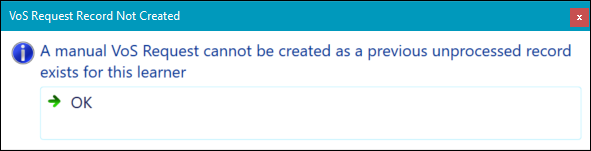
 Important.If an existing unprocessed VoS Request already exists for this learner, a warning is displayed and the internal VoS Request will not be created.